Dynamic Syncs: keep an audience updated automatically
A Dynamic Sync keeps adding the right people to an audience without you uploading anything. There are two kinds: one pulls in website visitors from your other audiences, the other follows a filter in HubSpot or Salesforce.
Open the audience, click Add Contacts, and scroll to Dynamic Syncs (or click it in the left menu).
Website Visits
This adds people from one or more other audiences into this audience when they visit your website. Use it to build a retargeting audience of people who already showed interest.
Click Open on Website Visits.
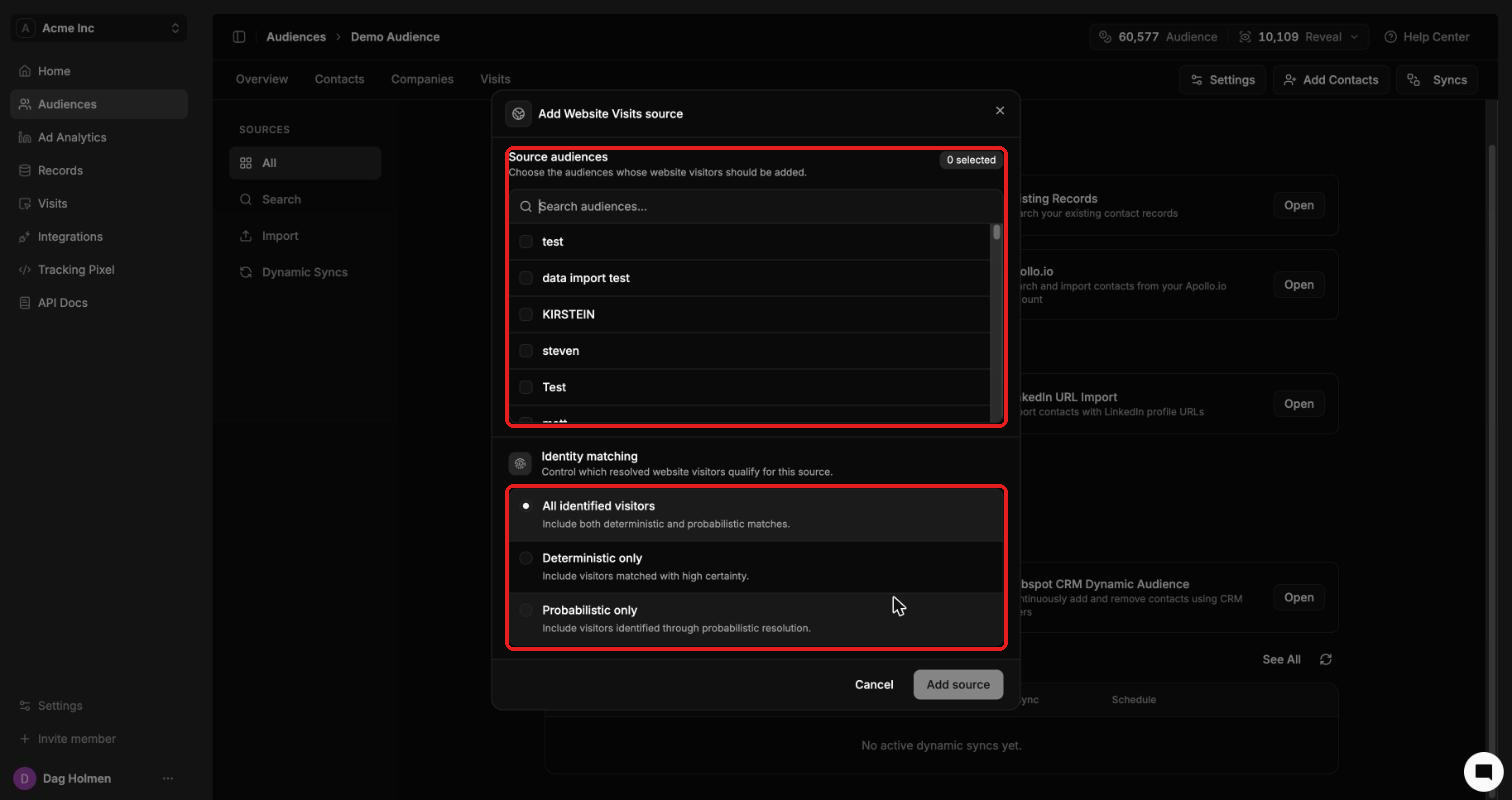
Under Source audiences, tick the audiences whose visitors should be added.
Under Identity matching, choose which visitors count:
All identified visitors: both deterministic and probabilistic matches.
Deterministic only: visitors matched with high certainty.
Probabilistic only: visitors identified through probabilistic resolution.
Click Add source.
This relies on Audience Visits, so your tracking pixel needs to be installed and your domain whitelisted. Your ads also need the audience's UTM parameter on the landing page URL.
HubSpot or Salesforce dynamic audience
This keeps the audience matched to a filter in your CRM. Salesforce works the same way as HubSpot once it's connected.
Click Open on HubSpot CRM Dynamic Audience.
Give the sync a name in the box at the top.
Build a filter condition: pick the object (for example Contact), a field, an operator and a value.
Click Add condition for more rules. Choose All conditions if contacts must match every rule.
Leave Remove contacts that no longer meet filters on if people should drop out when they stop matching. Turn it off to keep everyone who was ever added.
Pick a Sync schedule: Daily, Weekly or Monthly.
Check the Live audience preview. It counts matching contacts directly from your CRM.
Click Create dynamic sync.
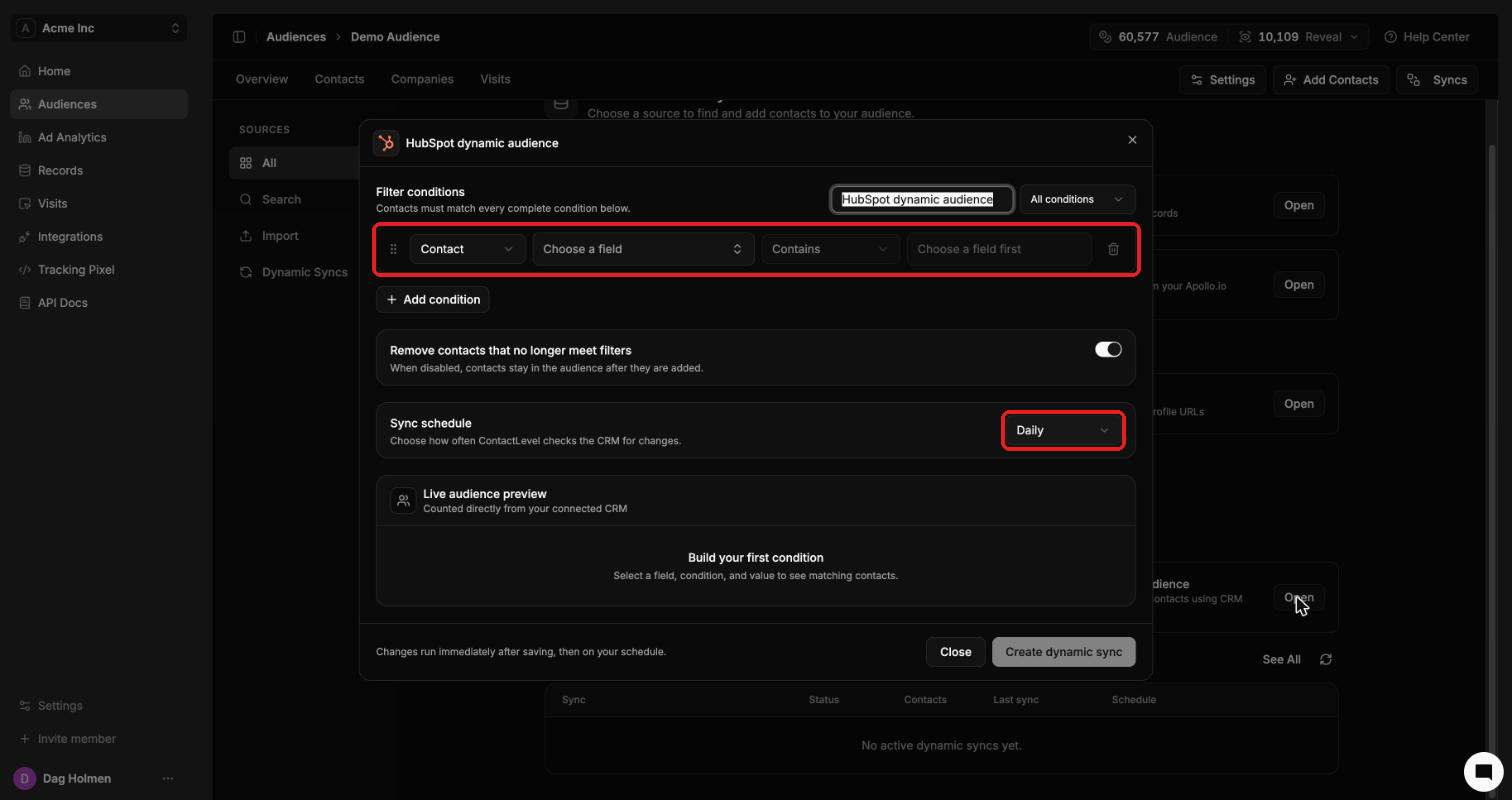
The sync runs as soon as you save, then on the schedule you picked.
Credits
Each new contact a Dynamic Sync adds costs 1 Audience credit.
Contacts that already exist in your account are charged and then refunded straight away.
Contacts the sync removes are not refunded.
See all your Dynamic Syncs
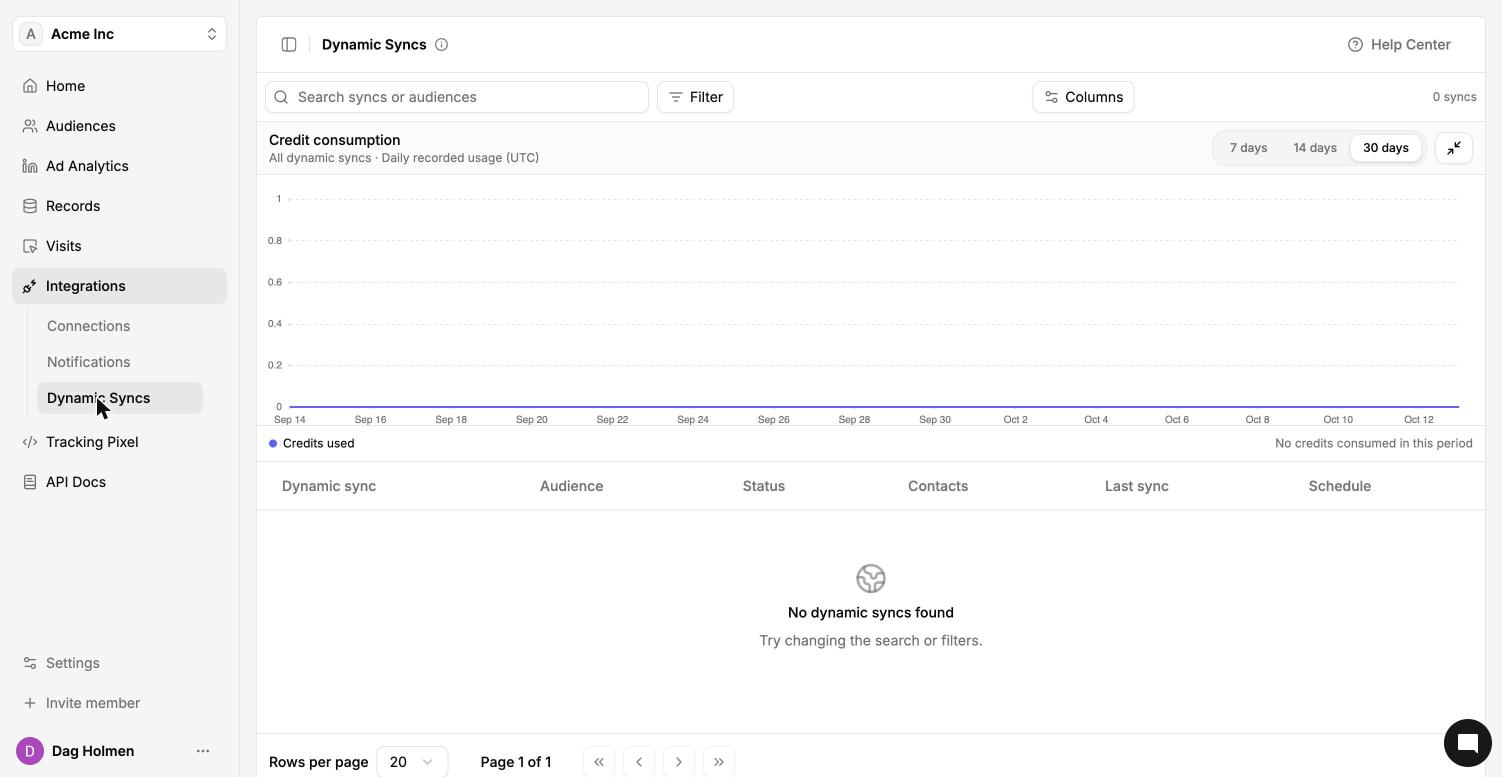
The Configured syncs list at the bottom of the Add Contacts page shows the syncs for that audience. For every sync in your account, go to Integrations → Dynamic Syncs. It shows a credit consumption chart for the last 7, 14 or 30 days and a table with each sync's audience, status, contacts, last sync and schedule.