
Connecting HubSpot or Salesforce
Connect HubSpot or Salesforce to search your CRM contacts, keep audiences filled from CRM filters, measure LinkedIn's influence on deals and send website visits back to your CRM. Both CRMs work the same way. The steps below use HubSpot.
Connect your CRM
Go to Integrations → Connections.
Open the row menu next to Hubspot CRM (or Salesforce CRM) and click View details.
Click Connect HubSpot and log in to your CRM.
Approve access for the account you want to use.
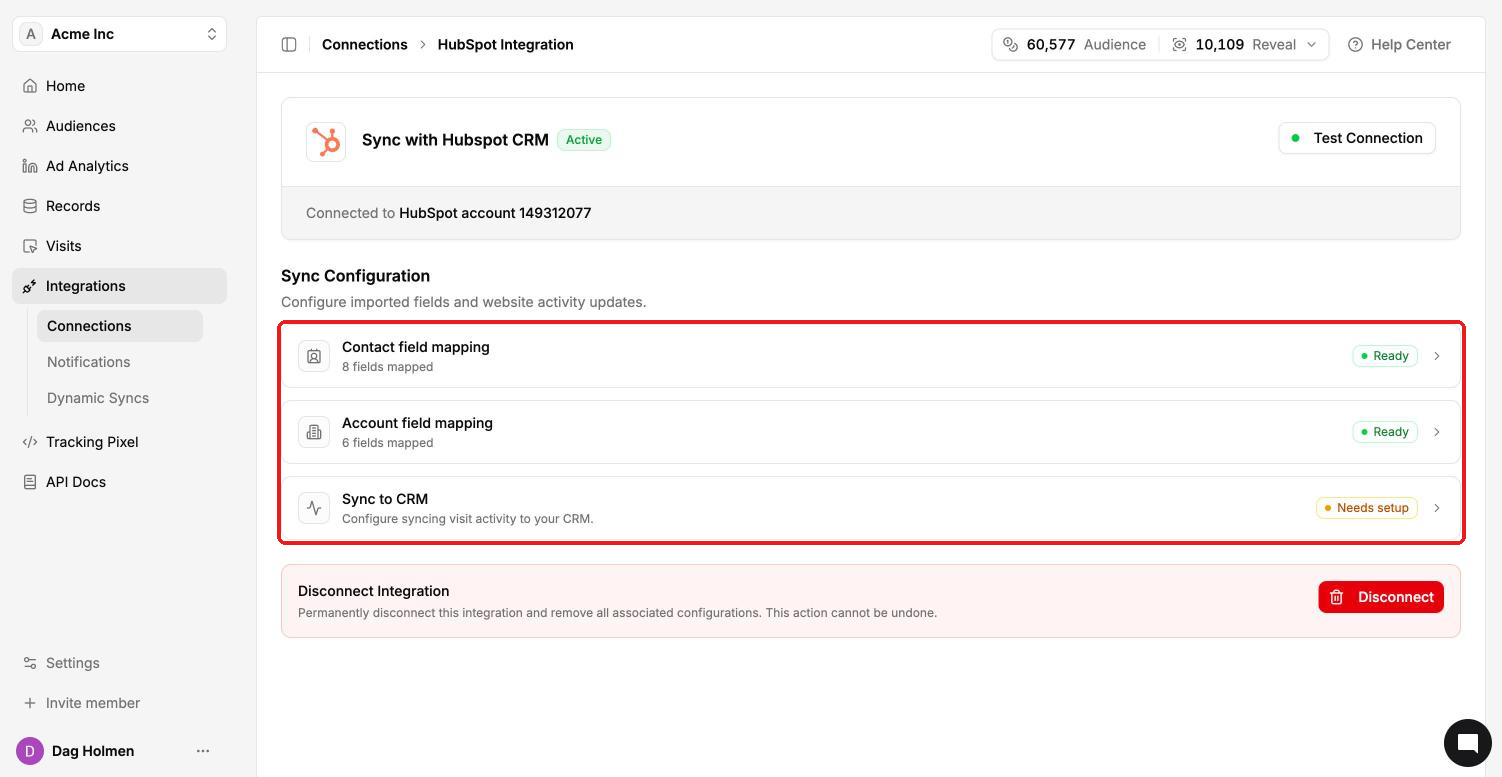
Once connected, the page shows "Sync with Hubspot CRM" marked Active and the account it's connected to. Click Test Connection any time to check it's working.
Map your fields
Under Sync Configuration you'll find three sections. Field mapping decides which CRM property each ContactLevel field writes to.
Contact field mapping
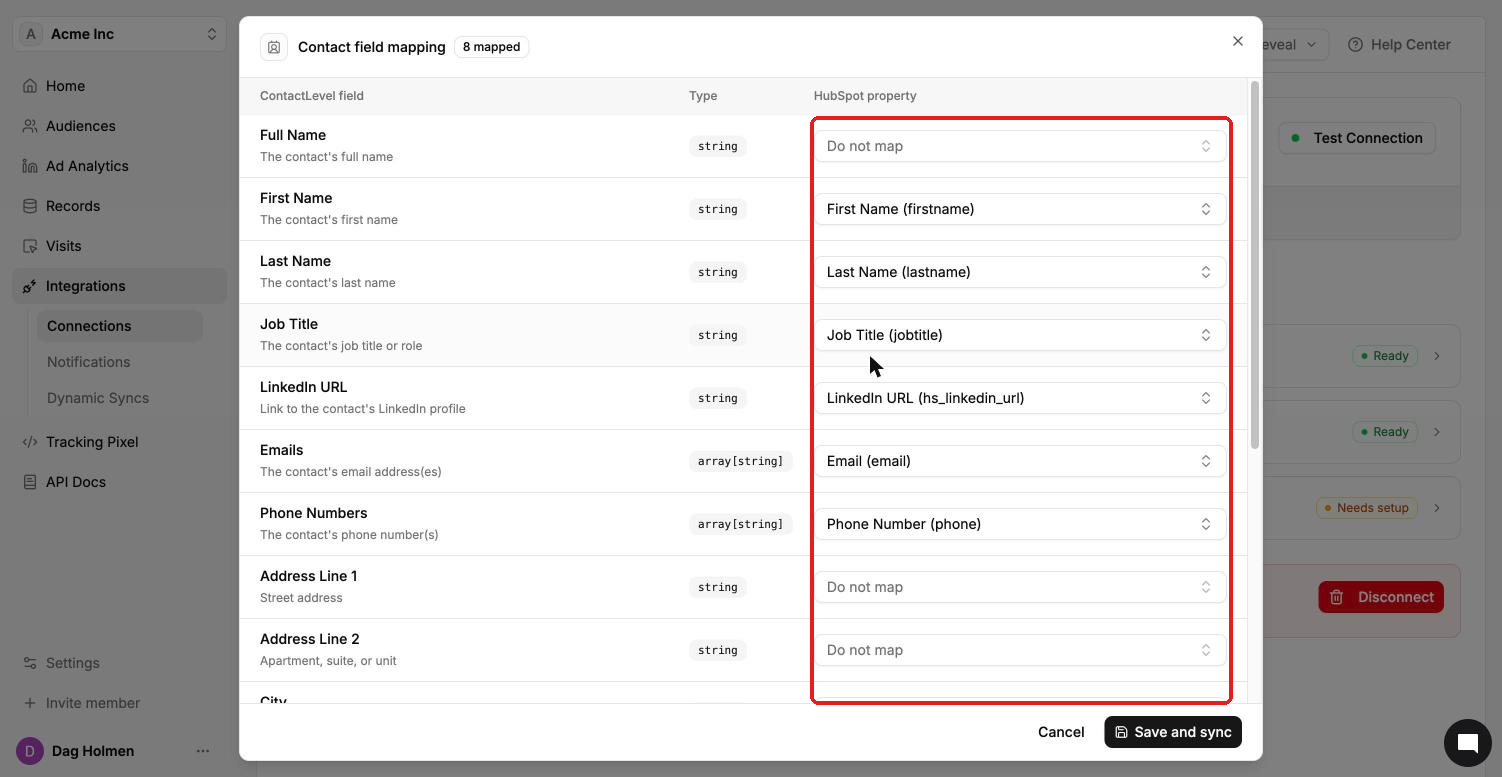
Click Contact field mapping.
For each ContactLevel field (Full Name, First Name, Last Name, Job Title, LinkedIn URL, Emails, Phone Numbers, address fields, City, State, Country, Company and more), pick a writable HubSpot property. Choose Do not map to skip a field.
Click Save and sync.
Account field mapping
Click Account field mapping and do the same for company fields.
Sync to CRM
This sends website visit activity to your CRM contacts. It has its own article, linked below.
What the CRM connection powers
CRM contact search: find CRM contacts and add them to an audience from Add Contacts.
CRM Dynamic Syncs: keep an audience filled with contacts that match your CRM filters, on a daily, weekly or monthly schedule.
Pipeline analysis: see which deals LinkedIn ads influenced in Ad Analytics → Pipeline.
Warm companies without a deal: companies engaging with your LinkedIn ads that aren't tied to a CRM deal yet.
Searching your CRM is free. Each new contact you add to an audience from it costs 1 Audience credit.
Disconnecting
Click Disconnect at the bottom of the integration page. This permanently removes the integration and all its settings, and can't be undone.