
Renaming, duplicating, tagging and deleting audiences
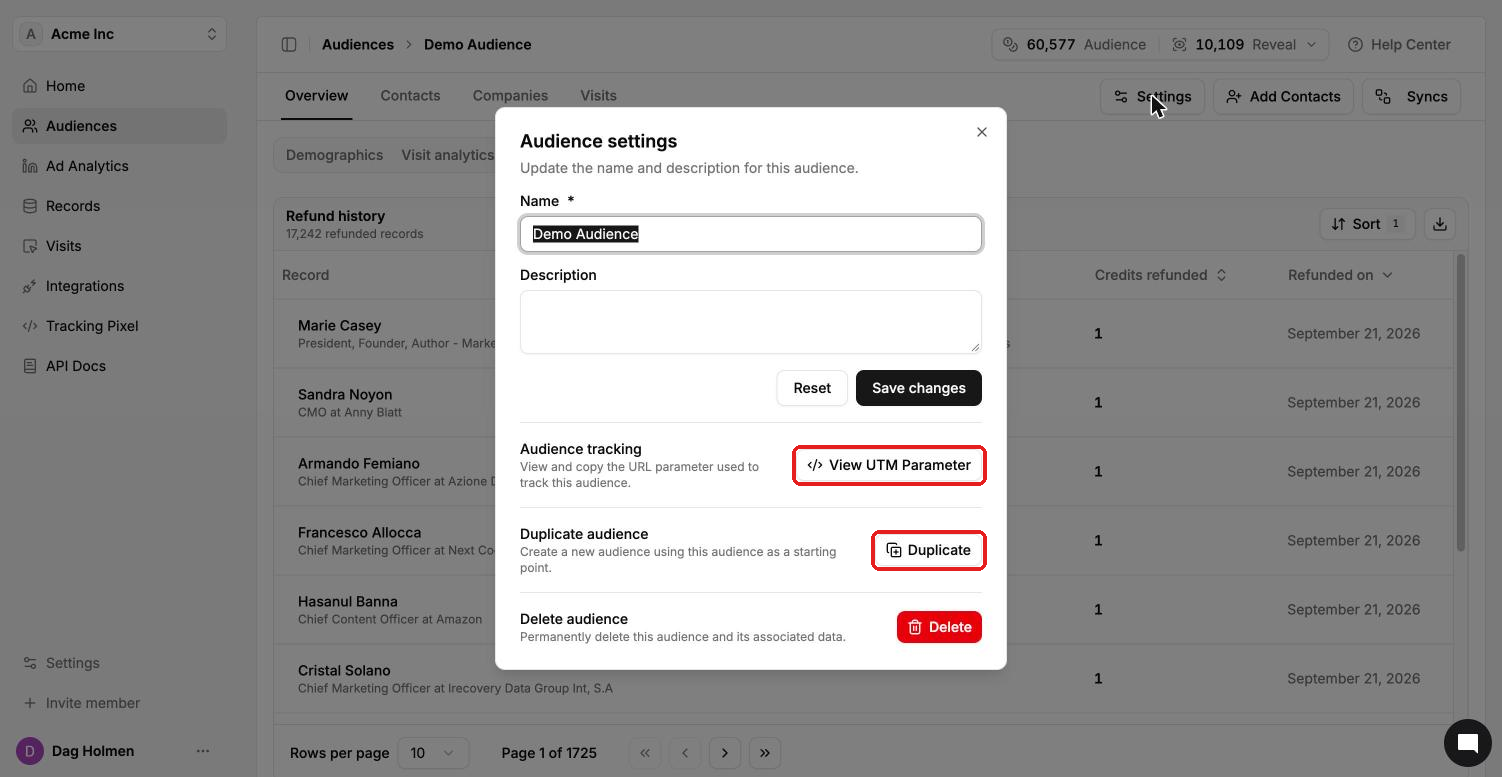
Most audience housekeeping happens in one place: the Settings button inside the audience. From there you can rename it, copy it, grab its UTM parameter or delete it.
Rename or change the description
Open the audience from the Audiences page.
Click Settings in the top right.
Edit the Name or Description.
Click Save changes. Click Reset to undo your edits before saving.
Find the audience's UTM parameter
Under Audience tracking, click View UTM Parameter to see and copy the cl_audience value for this audience. Add it to the landing page URL of ads that target this audience so Audience Visits can tie visits back to it.
Duplicate an audience
Under Duplicate audience, click Duplicate. This creates a new audience using this one as a starting point. It's handy when you want a variation, like the same people split by region.
Tag audiences
Add tags when you create an audience in the Create Audience dialog. On the Audiences page, use the Tags button in the toolbar to show only audiences with a given tag.
Export an audience's contacts
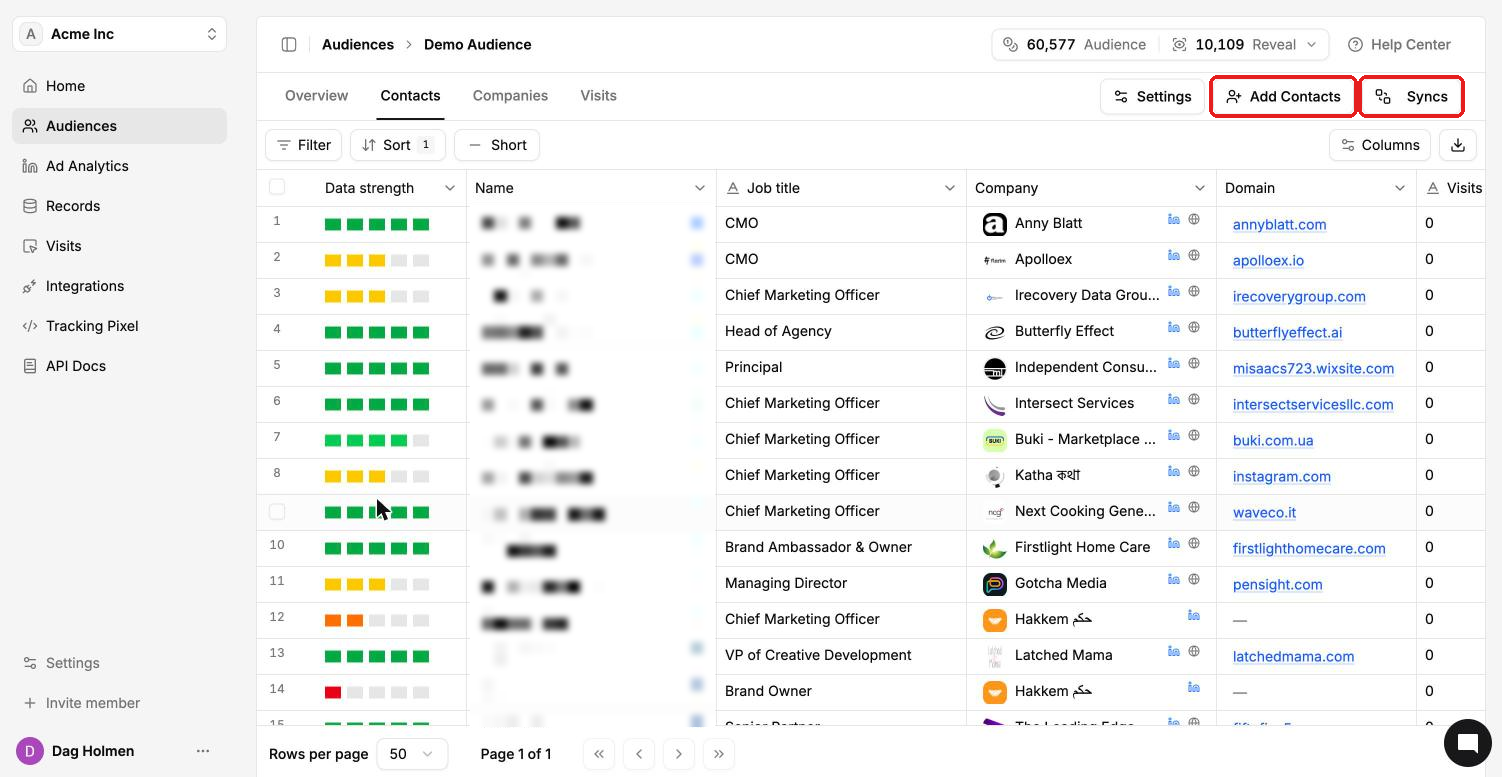
Open the audience's Contacts tab and click the download icon on the right of the toolbar. Use Filter, Sort and Columns first if you only need part of the list.
Delete an audience
Under Delete audience, click Delete. This permanently deletes the audience and its associated data and can't be undone.
Deleting an audience or removing contacts from it doesn't refund the credits used to add them.