Sync shows "Failed" or "Not synced"
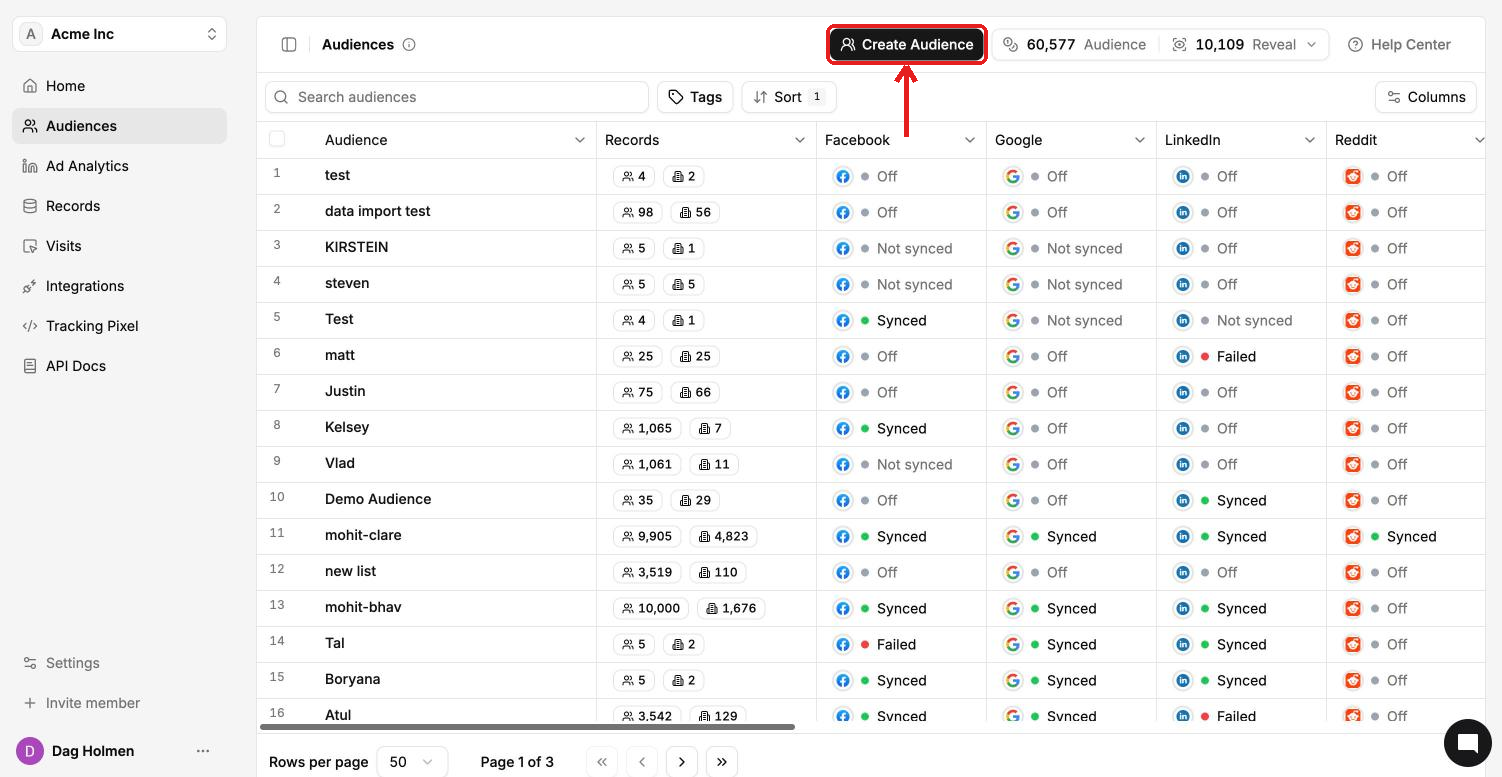
The Audiences page shows one status per platform for every audience. If a platform shows Failed or Not synced, use this page to find out why and get it running.
What each status means
Off: the audience isn't set to sync to this platform. Nothing is wrong.
Not synced: the platform is connected, but this audience hasn't been sent yet.
Synced: the audience was sent to the platform.
Failed: the last sync to this platform didn't go through.
Inside the audience's Syncs window you may also see Not Connected, which means the ad account isn't connected yet.
Fix "Not synced"
Open the audience and click Syncs.
Click Run next to the platform, or Run All Syncs.
Switch to Run history to watch the run. The status refreshes on its own.
Fix "Failed"
Go to Integrations → Connections and check the platform's status. It should say Healthy.
Open the platform (row menu → View details) and click Test Connection.
If the test fails, reconnect the ad account. Expired access and changed permissions on the ad platform are the most common causes.
Go back to the audience, open Syncs and click Run again.
Reconnecting doesn't delete your audiences in ContactLevel. But Disconnect removes the integration and its configuration for good, so you'll need to go through the connect steps again afterwards.
Platform-specific causes
Meta: Custom Audiences terms not accepted, ad account not linked to a Business Manager, or the 500 custom audience limit. See Meta Ads troubleshooting.
Google: the account isn't eligible for Customer Match. See Google Ads troubleshooting.
LinkedIn: expired access token. See LinkedIn Ads troubleshooting.
Fix "Not Connected"
Click Connect next to the platform in the Syncs window, or connect it under Integrations → Connections. See Connecting your ad accounts.
Get alerts when a sync changes
Under Integrations → Notifications, subscribe to Audience sync status in Slack, email or a webhook to hear about sync results without checking the app.
Still failing after a reconnect? Message us in the in-app chat (bottom right) with the audience name and the platform.